

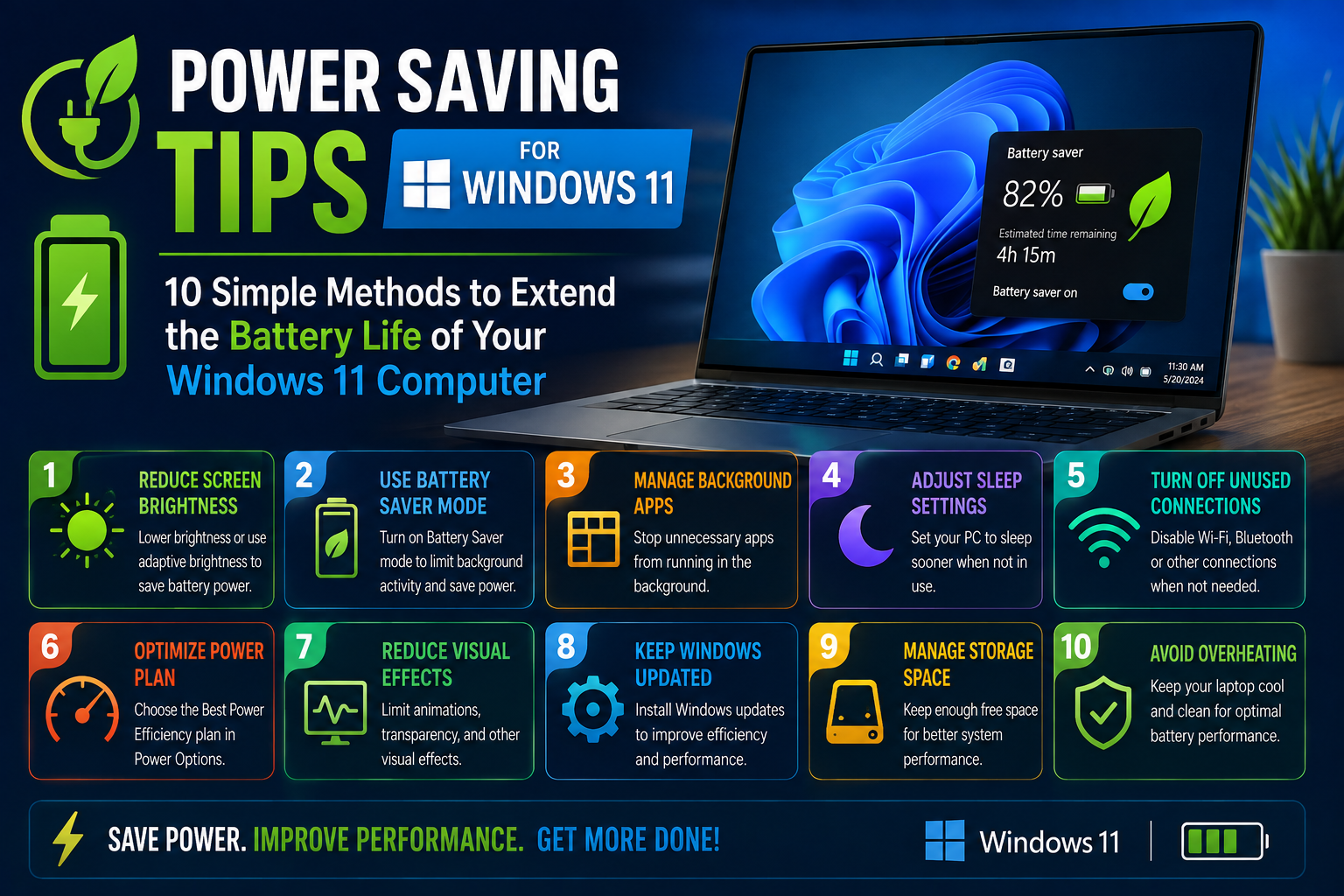
If the Windows 11 laptop you use daily drains its battery faster than expected, don’t rush to buy and install a new battery right away. Most people’s first reaction when their battery drains quickly is that there is a hardware problem, and they think replacing it with a new battery will solve the issue, but in fact there is no need to spend money on a replacement part that quickly. You only need to adjust a few simple built-in system settings to reduce your computer’s power consumption; without replacing any hardware, you can extend the length of time your laptop can run on a single charge. You will never have to panic and search everywhere for a power outlet to charge your device when you are away from a power source.
Turn On Battery Saver
All the practical, directly usable Windows 11 power-saving tips covered in this guide can be operated without installing any complex software, and can be implemented simply by adjusting your system settings.
There are many power saving features that are built into Windows 11. Google really focused on battery saving with the built-in Battery Saver in Windows 11. This saves battery the limiting processes that do not add value.
You can browse to Settings + System + Power & battery or look Battery Saver. Your Windows 11 version may replace Battery Saver with Energy Saver.
This feature can allows you to select a battery percentage and set your phone to turn on automatically. You can use this when you need to use your phone away from a charging point and want to increase your battery time.
Reduce Screen Brightnes
Your laptop screen is a huge power drain if it’s set to the maximum screen brightness. Setting the display to maximum brightness greatly affects battery life.
Adjust the brightnes level to your comfort. You can head to the Quick Setting panel by pressing Window + A key.
If you are working indoor you usually do not need maximum brightnes. A moderate brightnes level can make a noticeable difference while also being easier on your eyes.
Use a Lower Screen Refresh Rate
Windows 11 laptops are crazy fast now. 90Hz, 120Hz, 144Hz — those are some common ones. Higher refresh rates, yeah they make a difference. Scrolling’s smoother, animations too. But, it changed everything — well, not everything, but a lot: battery life, mainly. Does that matter? Yeah, it does.
The thing with high refresh rates — and this is what gets tricky — is that you don’t always need them. Like when you’re not plugged in. Then it’s just eating battery. So, switch to a lower one, maybe. If you can.
How do you do that? Um, settings. Go to settings — **Settings**, to be exact. Then system, display, advanced display. That’s where the refresh rate thing is. You can set it to change automatically — if your laptop supports that, which some do, I think. Companies are making laptops with this feature now — most of them anyway.
Close Unnecessary Background Apps
Stuff runs in the background. It’s using up resources — CPU, memory, all that. And battery power, which is a big deal. You gotta check what’s installed Settings, Apps, the whole thing. See what you don’t need anymore and get rid of it. Task Manager’s another way Ctrl + Shift + Esc, I think. Look for the apps hogging resources and close them. Don’t touch the Windows stuff though that’s important. Be careful with that.You don’t wanna mess up your system that would be bad.
Disable Apps That Start Automatically
Stuff runs in the background. When you start Windows, I mean. Some of these programs launch automatically — most of them, actually. You can check, though: Task Manager, Startup apps, all that. Look at the list. Does that matter? Yeah, it does. If you see apps you barely use, turn them off. I mean, disable their startup. Like that one program you use once a week – it doesn’t need to be on all the time. The thing with startup apps — and this is what gets tricky — is figuring out which ones you actually need. But turning off the unnecessary ones helps. Battery life, for one. Startup speed too — that’s a big one. Companies are using this trick now — most of them anyway. To make their laptops last longer, I guess.
Choose a More Efficient Power Mode
Windows 11. Got settings for power. You can adjust it — makes a difference. Go to settings, system, power and battery — that’s where it’s at. Look for power mode. It changed everything — well, not everything, but a lot. When you’re on battery, pick a mode that saves energy. Does that hurt performance? Yeah, it does. A bit. Not a huge deal for normal stuff like browsing or email. Watching videos too — that’s all pretty low key. But if you need it to perform — like really perform — you can switch back. Companies are using laptops like this now — most of them anyway. Performance or power saving — that’s the tradeoff.
Turn Off Bluetooth and Wi-Fi When You Do Not Need Them
Bluetooth uses battery. Lot of battery. If you’re not using it — like, if you’re not listening to music or something — turn it off. I mean, it’s pretty simple. Traveling,
you don’t need it, right? No headphones, no mouse, just turn it off. Does that matter? Yeah, it does. Wi-Fi’s the same way – if you’re offline, you don’t need it.
The thing with Wi-Fi — and this is what gets tricky — is when you actually need an internet connection, which is most of the time. But if you’re just working on some document or whatever, and you’re not online, then yeah, turn it off. You can do all this from Windows + A — that’s the shortcut, by the way. Companies are using shortcuts like that now — most of them anyway.
Use Dark Mode
Dark Mode helps. With OLED screens, it actually saves battery — well, not a ton, but some. Because black uses less power or something. LCD screens, not so much. Still, it’s nicer on the eyes in a dark room.
To turn it on, you gotta go to settings. Um, where was it? Settings, personalization, colors — that’s it. Then just pick dark. Easy. Does it make a huge difference? Nope. But it’s worth a shot, right? – especially if you’re using one of those OLED laptops.
Keep Your Laptop Cool
Heat matters. Big time. Using your laptop on a bed or something — it’s a bad idea. Blocks the vents. Makes the cooling system work way harder than it needs to. The privacy part — no, wait, that’s not relevant here. What I mean is, put it on a hard surface. Flat, too. So air can get in. Through the vents, obviously.
Dust is a problem. In the vents. Clean it out. Every now and then. Does that matter? Yeah, it does. If your laptop’s getting crazy hot — even when you’re just browsing or whatever — check what’s running in the background. Some app might be eating up all the CPU.
Temperatures are key — keeping them under control, I mean. Helps the laptop run better. More efficiently. Whatever. Companies are using laptops now — most of them anyway. And they need them to work right. – Which is why all this stuff is important, I guess.
Keep Windows and Drivers Updated
So keeping Windows 11 and your laptop’s drivers up to date can actually make a difference with power management. The people who made your laptop are always putting out updates that can help your hardware work better together, run smoother, and sometimes even save battery life.
You should probably check for updates in Windows Update – it’s in Settings. Just see if there’s anything new. And while you’re at it, check your laptop maker’s website or support software for any BIOS or driver updates. Just be careful with those BIOS updates, follow the instructions to the letter, because you don’t want to mess anything up.
Bonus Tip: Check Which Apps Use the Most Battery
If your Windows 11 battery is draining faster than usual, head to **Settings > System > Power & battery.** There, you’ll find details on battery usage. Depending on the version of Windows 11 you have, you might be able to see which of your apps has consumed the most battery over the last period you selected. This is a great way to see what might be draining your battery instead of you testing new settings.
Final thought
Windows 11 Battery life matters. Lower the screen brightness, that’s an easy one. Use Energy Saver too – it helps, I think. Closing apps you don’t need, that’s a no-brainer. Power-efficient mode, yeah, do that.
If it’s still dying fast — and I mean really fast — then what? Check the battery’s health, I guess. Is the battery even the problem? Maybe it just needs to be replaced – that’s a thing, right?
