

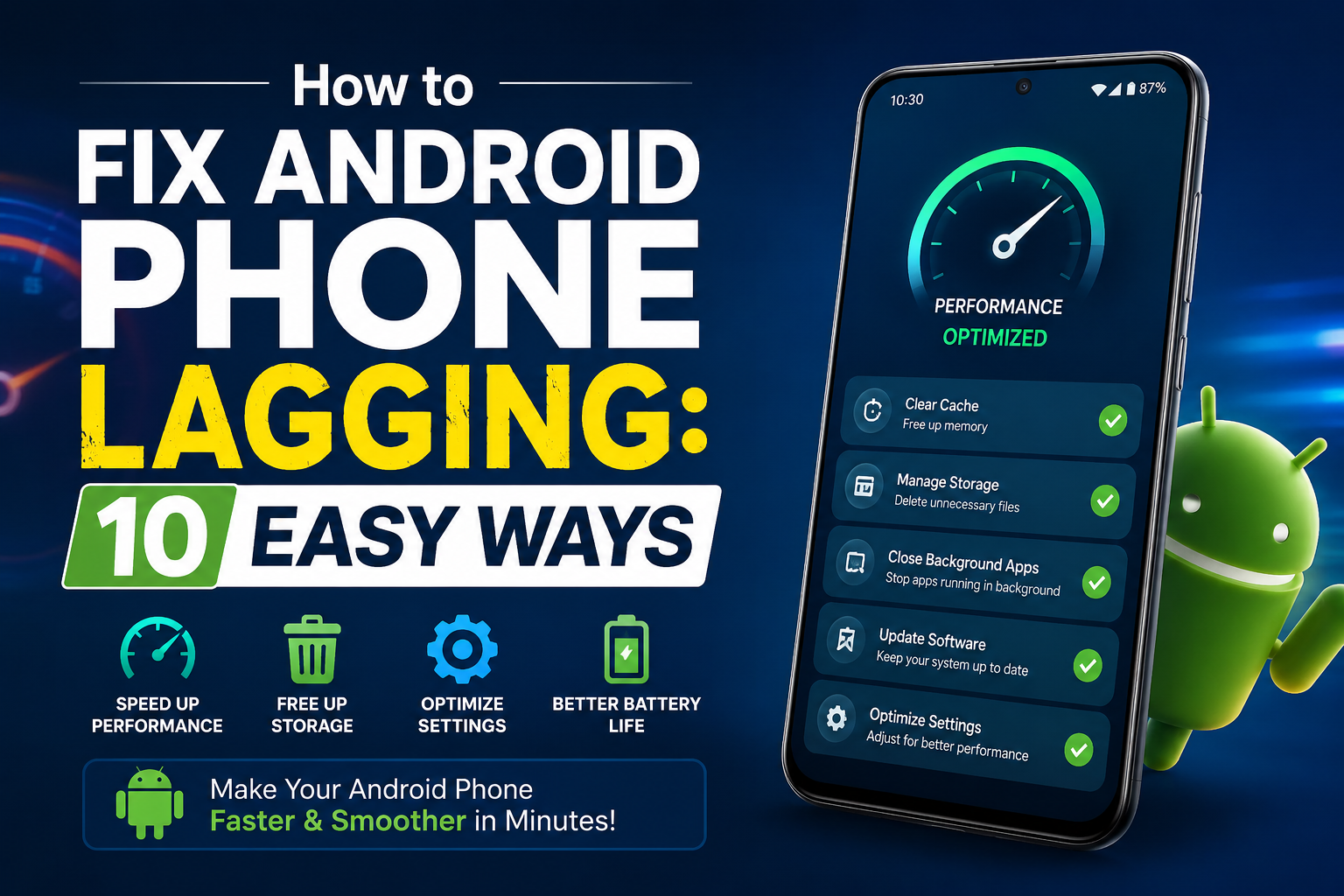
If your Android phone now become a slow he freezing while opening apps or taking too long to respond? You are not alone. Android phones can give start lagging because of low storage, outdated software too many apps, or an app that is causing performance problems.
good news is that you usually do not need to buy a new phone immediately in this guide you will learn how to fix Android phone lagging with simple steps that you can try at home.
Why Is My Android Phone become a Lagging and how to fix Android Phone Lagging ?
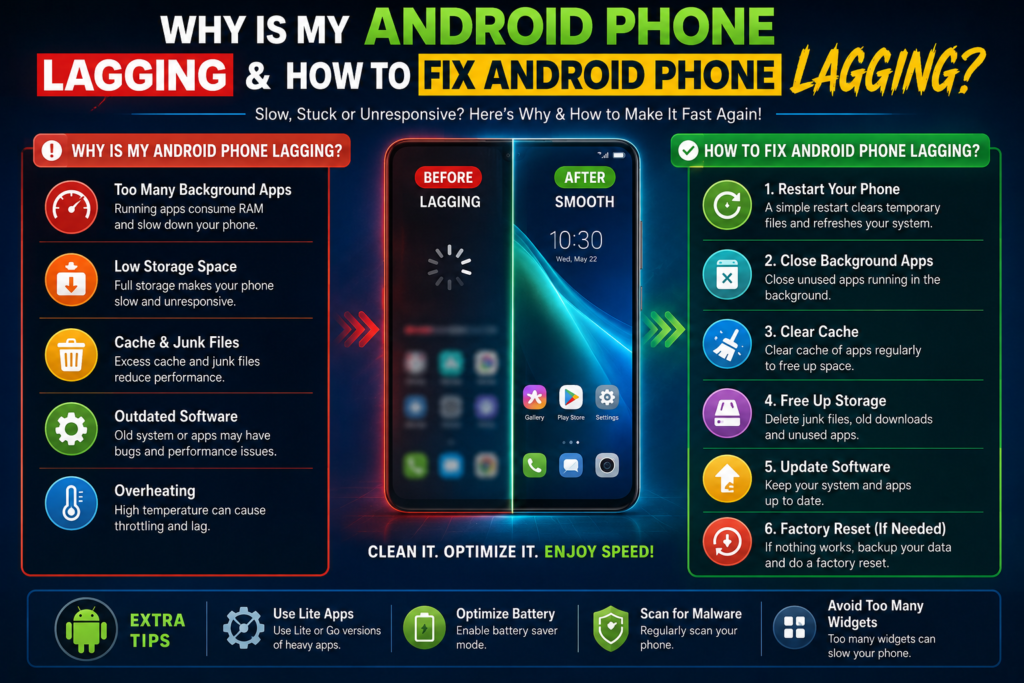
There can be several reasons why an Android phone become slow some of the most common causes include:
- Low available storage
- Too many unnecessary apps
- Outdated Android software
- Apps running into problems
- Too many background processes
- An older phone with limited hardware
- temporary software glitches
Google also recommended checking your storage installing available updates restarting the phone, and investigating problematic apps when an Android device is slow.
Restart Your Android Phone
A simple solution is to often a restart.
restart can clear temporary software problems and give your phone a fresh start.
To restart most Android phones:
1. Press and hold the Power button.
2. Tape **Restart**.
3. Wait the phone to turn back on.
4. Test the apps that were previously lagging.
If your phone has become slow suddenly, try this step first.
Free Up Storage Space
Low storage can affect your phone’s performance Google noted that Android device can start experiencing problems when less than 10% of the storage is free.
Check your storage by going to:
**Settings → Storage**
Remove things you not longer need, such as:
- Large videos
- Duplicate photos
- Old downloads
- Unused apps
- Large files
Try to keep your some free space available instead of filling your phone completely.
Uninstall that apps You not Use
Unused apps take up storage and some apps may be continue running services in background.
Go through your installed apps and remove applications you no longer use.
To uninstall an app:
**Press and hold the app icon → Uninstall**
Becareful don’t remove important system applications unless you know what they’re do.
Update Your Android Software
An outdated version of Android can sometimes cause performance or compatibility problems.
Open:
**Settings → System → Software update**
The exact menu can be different depending on your phone manufacturer. Google also recommended checking for available Android updates when the troubleshooting a slow device.
If an update is available so install it when your phone has enough battery and a reliable internet connection.
Update Your Apps
Some time a problem is not in your phone itself but an outdated application.
First open Google Play Store and tap your profile picture and select Manage apps & device from there, you can update apps that have new versions available.
Pay particular attention to apps that frequently freeze or takes long time to open.
Check Which App Is Causing the Lag
If your phone started lagging after installing the particular application that app could be responsible.
Try remove recently installed apps one at the time and check whether phone become a fast.
An other useful method is Safe Mode. It’s temporarily disables downloaded apps. If phone works normally in Safe Mode downloaded apps may be causing the problems.
The exact method for entering Safe Mode is depending on your phone manufacturer.
Close or Force Stop Problematic Apps
If one particular app becomes unresponsive or uses excessive resources, you can try force to stopping it.
Go to:
**Settings → Apps → See all apps → Select the app → Force stop**
Menu names can vary between Android phones.
If the same application can repeatedly causes problems, check for an update or consider uninstalling it.
Clear App Cache When Necessary
Some apps can accumulate cached data over the time.
If one application can behaving strangely, you can check its storage settings and clear its cache.
Usually, the option is found under:
**Settings → Apps → [App Name] → Storage → Clear cache**
Avoid randomly clearing apps data because it can remove saved information that require you to sign in again.
Reduce Unnecessary Background Activity
Too many demanding apps started running at the same time it’s can make an older Android phone feel slower.
Close apps you are not currently using it and remove unnecessary applications that constantly run in the background.
Also avoid installing multiple “phone booster” or “RAM cleaner” apps just to make the phone faster. They are not always necessary and he sometimes add more background activity.
Factory Reset as a Last Option
If your Android phone is randomly extremely slow after trying everything above, the factory reset may be worth considering.
However do not do this without back up your important data first.
A factory reset can remove app data from the device photos contacts documents and other important information should be backed up before hand.
A reset should be your last option, not the first solution.
How to make your Android Phone is Faster
For better long term performance so follow these simple habits:
- Keep enough storage free.
- Install Android and app updates.
- Remove apps you no longer use.
- Restart your phone occasionally.
- Avoid any installing unnecessary cleaner or booster apps.
- Keep your important files backed up available.
- Replace very old apps with lighte alternatives when appropriate.
These small habits can give help to keep your Android phone responsive for longer.
Frequently aske questions
Why my Android phone suddenly lagging?
A sudden slow down can be caused of a problematic app, low storage, an update issue, or a temporary software problem. Restarting the phone and checking storage are good first steps.
Does low storage make it an Android phone slow?
It can. Google recommends keeping sufficient free storage and notes that problems can occur when less than 10% of storage remains available.
Should I use a RAM cleaner app?
Usually, you do not need a third party RAM cleaner simply because your phone feels slow. It is better to identify the actual cause, such as low storage or problematic app.
Will a factory reset fix Android lagging?
A factory reset can give help with persistent software problems, but it removes your apps and personal data from the device. Always back up your important information before resetting.
How can i fix Android phone lagging without resetting ?
Start with the restart is free up storage, update Android and your apps, remove unnecessary applications, and check whether a recently installed app is causing the problem.
Final Thoughts
If your Android phone is now lagging on don’t assume that you need a new device. Start with the easiest solutions restart your phone free up storage update Android and your apps and identify any problematic applications available.
many users can follow these simple steps can noticeably improve everyday performance. If many problem continues even after troubleshooting you can consider the more advanced options such as a factory reset or contacting your phones manufacturers.
