

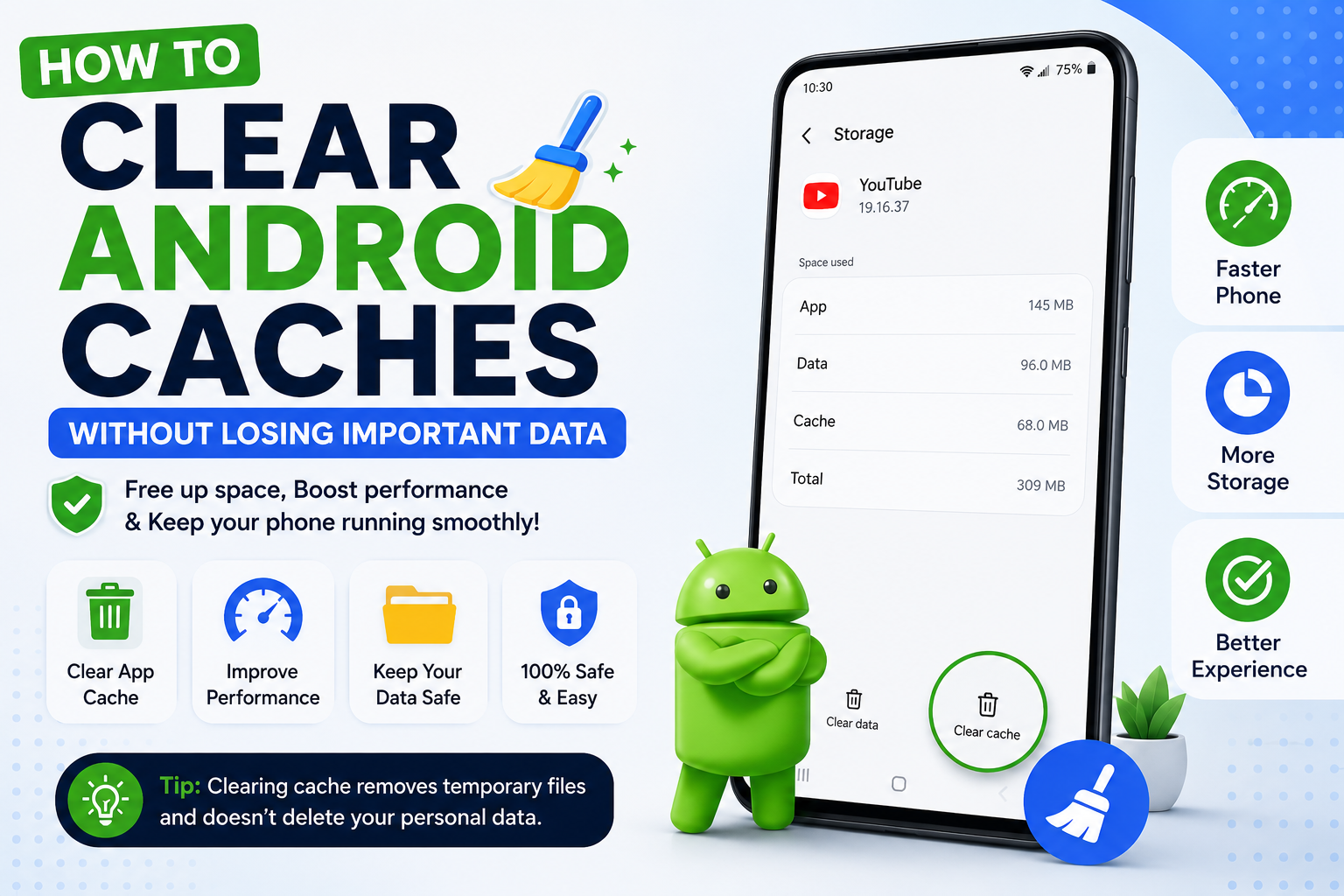
Android phone can get slower over time because apps keep files in the background. These files are known as cache data. Caches help for app open content faster but too much caches can take up space or make app actually strangely.
The good news is that clearing caches of android is easy and usually does not delete your files. You can clear the caches of apps when they are running slowly or having issues.
What Is Cache on Android?
Cache is data that Android apps store on your phone. Apps might save images, web content, thumbnails and other temporary files so they do not have to download or create everything again.
For example a browser can save website files to make pages you visit often load faster.
Cache is not the same as your data. Removing cache usually does not take away your photos, videos, contacts or documents.
Why Should You Clear Cache?
You do not need to clear cache all time. Android can manage files in many cases.
Clearing Cache can give help when apps:
- Is working slow
- Keeps showing content
- Crashes a lot
- Takes more storage than it should
- Does not work right after an update
Clearing cache can also free up some space temporarily.
How to Clear android cache
The exact names of menus can vary depending on your Android phone and the company that made it. The general steps are similar on devices.
Open Settings
Open the Settings app on your Android phone.
Find Apps
Look the apps and notifications some phones you might be need to choose see all apps to see the list.
Select an App
Find the apps that is having issues and tap its name.
For example you might pick your web browser if websites are not loading correctly.
Open Storage
Tap Storage. Storage and cache.
You should see details about the how storage the app is using.
Clear Cache
Tap cache.
Make sure that you have pick the Clear cache and not Clear storage or Clear data if you want to keep your app settings and account information.
Clear Cache vs Clear Data
This is a difference.
cache removes temporary files. Your personal information and most app settings usually stay the same.
Clear data or storage removes the apps stored data. Depending on the app this can log you out. Reset the app.
For fixing issues start with cache before trying Clear data.
How to Clear Browser Cache on Android
If your main issue is incorrect websites you can also clear your browser cache.
Open your browser. Go to its settings. Find the privacy. Browsing data section and look for an option to clear cached files.
Before removing browsing data check the options carefully. You may be able to remove the cache while keeping saved passwords and other data.
Does Clearing Cache Delete Photos?
Normally clearing an apps cache does not delete photos that’re in your phones gallery.
However you should always check the option you are choosing before you confirm. Avoid picking Clear data if your goal’s only to remove cache files.
When Should You Clear Android Cache?
There is no need to clear caches every day or every week.
A better ideai is this to clear cache when you see problem. If a app suddenly get slow or start crashing after an update then clearing its cache can give help to fix this issue.
If your phone working fine there is usually no need to clear every app cache regularly.
What If Clearing Cache Does Not Fix the Problem?
If a app can still crash or work poorly after clearing its caches you can try to updating the app and restarting your phone.
You can also check if an android system update available. If issue only affects one app reinstalling that app may help.
For problems with apps the issue could be related to storage, system software or another process running in the background.
Final Thoughts
Clearing cache on android is way to fix that apps are slow or not working clearly. It can get ride of temporary files that are no longer needed.
Keep your mind that caches or Clear data are two different options. If you want to remove files without resetting the app choose Clear caches.
You not need to clear your cache all the time. Use it when an app is having issues or when temporary files are taking up space you do not need.
