If you can trying to do something in online and your WiFi is just dragging Videos are buffering, websites are taking forever to load, and gaming is a nightmares because of the lag. First thought is usually – I need a better internet plan, right? But that’s not always the issue.
Thank you for reading this post, don't forget to subscribe!I mean, think about it – where your router is, how many devices are connected, other wireless signals interfering… all that stuff can slow down your WiFi. And let’s not forget old equipment or network settings that need a tweak. Before you go out and buy a new router or upgrade your package, there are some pretty simple things you can try to boost your WiFi speed at home.
Restart Your WiFi Router
So your internet is slow one thing to try is just restarting your router. It’s crazy how often this works, but sometime these things just get little mixed up after running nonstop for a while.
Simply Just off and wait 30 seconds then on it. Give it few minutes to get going again, then see if your connection is better. That’s not a permanent fix or anything but it can clear up some temporary issues and get your WiFi running more smoothly.
Place Your Router in a Better Location
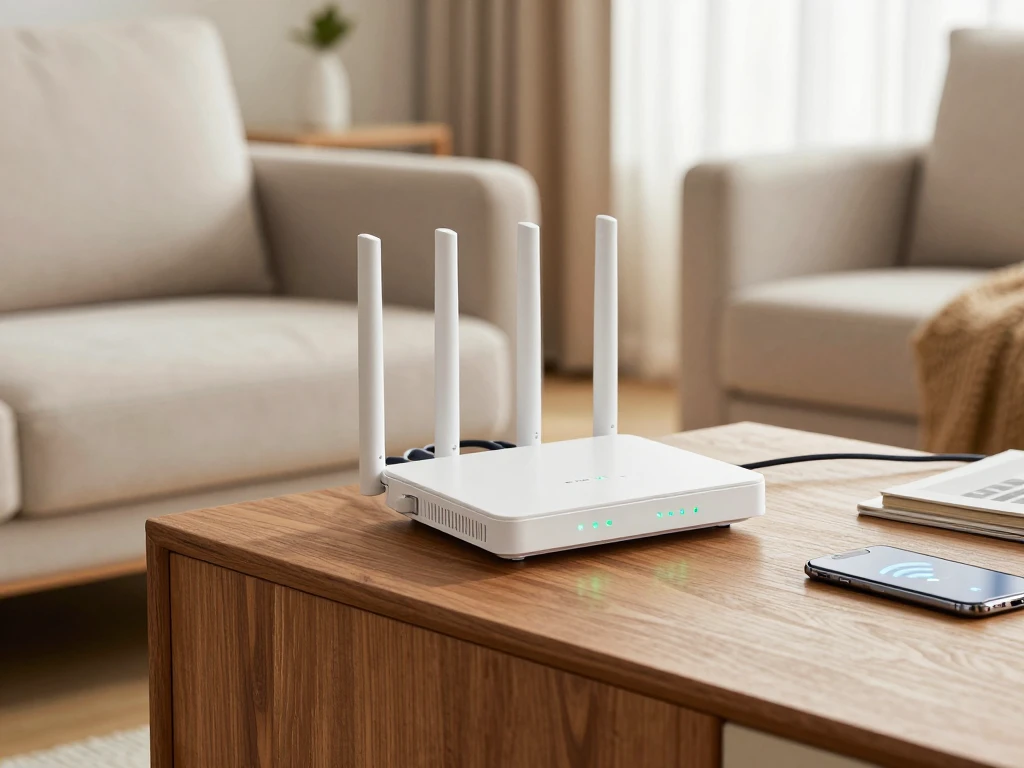
And have you ever thought about where your router is? It’s actually can makes a big difference. If it’s stuck in closet or behind couch the signal can not going to travel very far. Try moving it to more open spot, like a central room in your house. Even just getting it up off the floor a bit can help the signal spread out more.
Just don’t put it near anything that could interfere with the signal, like thick walls or big metal things. Or electronics like TVs – those can mess with the signal too.
Move Closer to the Router
WiFi signals are not super strong to begin with and they get even weak the farther you are from the router. And it’s not just distance – walls, furniture, all that stuff can mess with the signal too.
I’ve noticed if my internet is fine near the router but super slow in another room, it’s probably because of the distance or the signal just isn’t strong enough. Try moving your device closer to the router and see that if it can makes a difference. If it does, maybe the issue isn’t your internet package, but just that your WiFi coverage isn’t great.
Disconnect Devices You Are Not Using
So the more devices you have on your network, the slower it can get. I mean, think about it – most homes have a bunch of stuff connected at the same time: phones, laptops, smart TVs, tablets… and that’s not even counting cameras and gaming consoles.
And here’s the thing, some of these devices are probably downloading updates or syncing data without you even realizing it.
It’s worth to checking your router settings to see what’s actually connected. You can probably find list of devices some where in there. If you see something you don’t use anymore so just remove it. That way, you’re freeing up bandwidth for the stuff you actually need.
Choose the Right WiFi Band
Many modern routers utilize both of the 2.4 GHz and 5 GHz WiFi bands. These bands both have their own distinct advantages.
The 2.4 GHz can provide better through wall penetration, while the 5 GHz is better for short range but higher speeds.
If your router has multiple options, you can try connecting your device to either network. For which network, if either, you should connect to is dependent upon your home’s layout and your distance from the router.
Check for WiFi Interference
Wireless interference makes WiFi connections slow and unstable. This is more prominent in densely populated areas, where there are many routers.
Other devices emitting radio signals may cause interference.
Positioning the router away from such devices and placing it in a well ventilated area should be sufficient. Newer routers also tend to have an auto channel selection option, which can prove to be beneficial in reducing interference caused by other networks.
Update Your Router Firmware
Router manufacturers occasionally that can release the firmware updates that improve security stability compatibility and performance level.
If your router is not updated for long time then check the manufacturers instructions and see whether newer firmware is available.
Some routers can support automatic updates but ather require to you install and update manually. Always follow the manufacturer instruction because interrupting a firmware update can cause problems.
Check Your Actual Internet Speed
Sometimes the WiFi is not responsible for the slow connection. Your internet service itself could be experiencing an issue.
Run an internet speed test while standing relatively close to the router. Compare the result with the speed included in your internet package.
You can then repeat the test from different rooms. If the speed is good near the router but poor farther away the issue is probably related to WiFi coverage. If the speed is slow everywhere the problem may be related to your internet connection or service provider.
Use a ethernet cable when possible
For devices that can stay in one place, an Ethernet connection can provide a more stable alternative WiFi.
Desktop computers, gaming consoles, smart TVs, and other stationary devices can benefit from a wired connection. Ethernet does not depend on wireless signal strength and is less affected by wireless interference.
Using Ethernet for important devices can also reduce the number of devices competing for wireless bandwidth.
Improve Weak WiFi Coverage With a Mesh System
If certain areas of your home is consistently have weak WiFi signal, WiFi extender or mesh system may help.
A traditional extender receives the signal from your main router and broadcasts it to another area. However the placement is important. An extender should be a positioned where it can still receive a reasonable signal from the main router.
For larger home a mesh WiFi system can provide more consistent coverage by using multiple network nodes that can works together.
Secure Your WiFi Network
An unsecured WiFi network can allow unknown people can connect to your internet. Unwanted connections can consume bandwidth and create a security concerns.
Use strong WiFi password and the most of secure wireless encryption option supported by your router.
You can also check your connected device list occasionally. If you see unfamiliar device is connect with so you can investigate it and change your WiFi password if necessary
Restart your device
The router is not always the only device that can experience temporary network problems. Your phone laptop tablet or computer may be also have a temporary connection issue.
Restarting device can really give help with its network connection.You can also try disconnecting from the WiFi network and then reconnecting if the connection is not stable.
If you notice that one device has slow WiFi but all the other devices are working fine it is usually better to troubleshoot that specific device.
Consider replacing a old router
A old router may not be able to handle the WiFi standards or they may have trouble when a lot of modern devices are connected at the same time.
If your router is old and you have already tried some troubleshooting it might be time to think about getting new.
Before you buy a router check how fast your internet is, how big your home is, how many devices are connected and what WiFi standards your devices can use. You do not need to buy the expensive router you just need one that is right for you.
Final thought
Making your WiFi faster at home does not always mean you have to buy equipment.Simple things, like restarting the router moving it to a spot disconnecting devices that are not being used choosing the right WiFi band and checking how fast your internet really is can make a big difference.
If your WiFi is weak so WiFi extender or mesh system might be helpful. If your router is old getting hardware could make it work better.
Before you change your internet package take some time to figure out what is really causing the connection. Once you know if the problem is your router, your WiFi coverage, the devices that are connected or your internet service it is much easier to find the solution.