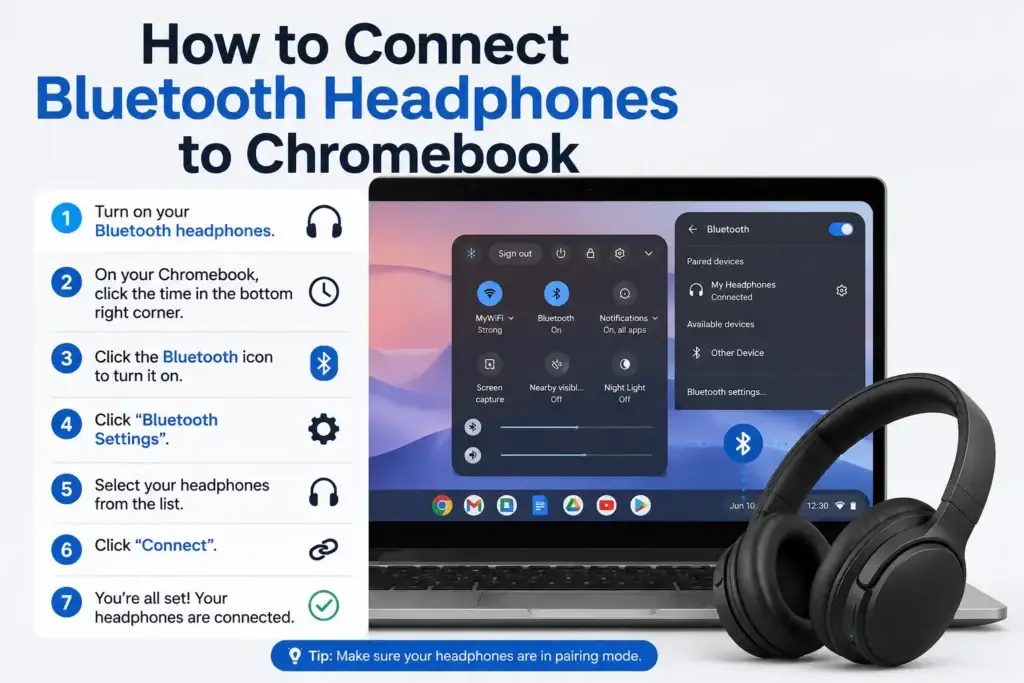
Bluetooth headphones chromebook connection is quick and easy. Once your headphone is paired you can use for listening to music watching YouTube videos attending classes joining meetings playing games and more.
Thank you for reading this post, don't forget to subscribe!Newer chromebooks support bluetooth device including Headphone earbud speaker keyboard and mice.Before you start make sure your headphone have battery and ready to pairing.
How to Connect Bluetooth Headphone to Chromebook easily
If you want to know how to connect Bluetooth headphones to Chromebook the process is simple and takes only a few steps. First, turn on your Bluetooth headphones and put them in pairing mode. Then open the Quick Settings panel on your Chromebook and turn on Bluetooth. Select your headphones from the list of available devices and click Connect. Once connected, your Chromebook will automatically use the headphones for audio, allowing you to enjoy music, videos, online meetings, and other content wirelessly.
Follow these simple steps to connect bluetooth headphone to chromebook easy.
Step 1: On Your bluetooth headphone
Start by turning on your Headphones.
Most wireless Headphones enter pairing mode when you press and hold power or Bluetooth button for seconds. Some earbuds enter pairing mode when you open charging case.
Look for flashing light on Headphones. This usually means they are ready to connect.
Step 2: Open Quick Settings
Look at right corner of Chromebook screen.
Click time Wi-Fi or battery area. This will open Quick Settings panel.
Step 3: On Bluetooth
Find Bluetooth option in Quick Settings.
Click Bluetooth to turn it on. Chromebook will begin looking for Bluetooth devices.
Step 4: Select Pair New Device
After Bluetooth is turned on select Pair device.
Chromebook will search for Bluetooth devices.
Keep your Headphone close to Chromebook while it searches. Also make sure headphone remain in pairing mode.
Step 5: Choose Your headphone
Wait for headphone name to appear in device list.
This depending on model you may see name such as:
- Sony WH 1000XM5
- JBL Tune
- AirPods
- Galaxy Buds
- Soundcore Headphones
Click name of your Headphones.
Step 6: Finish Pairing with device
Follow any instructions shown on Chromebook screen.
Once pairing is complete Headphones should appear as connected Bluetooth device.
Now you can use your headphone with chromebook.
How to Connect bluetooth earbud to chromebook
Bluetooth Earbuds can be connected same way as wireless Headphones.
1. Put earbuds in charging case.
2. Open charging case.
3. Put earbuds into pairing mode.
4. Open Quick Settings on Chromebook.
5. Turn Bluetooth on.
6. Select Pair new device.
7. Choose your earbuds from list.
8. Follow instructions shown on screen.
Some compatible earbuds may appear automatically when they are nearby and ready to pair.
How to Use Bluetooth Headphones for Sound
After connecting Headphones Chromebook should normally switch output to connected device. If sound still comes from Chromebook speakers you may need to select Headphones
Click time in right corner and open sound controls.
Look for audio output devices and select your Bluetooth Headphones.
Play music or video to check whether sound is coming through Headphones.
If there is still no sound disconnect Headphones. Connect them again.You can also check chromebook sound settings to make sure that correct output device is selected.
How to disconnect bluetooth headphone from chromebook
You do not need to forget Headphones every time you want to stop using them.
Open Bluetooth. Find connected Headphones.
Select. Choose Disconnect when option is available.
The device can usually be connected again later without going through pairing process.
How to remove bluetooth headphone from chromebook
If you not longer want vhromebook to remember your headphone you can remove them from Bluetooth settings.
Go to:
Settings → Bluetooth
Find Headphones under previously connected devices.
Select Headphones. Choose Forget.
After forget the device you will need to pair headphone before use them with chromebook.
Bluetooth headphone not connecting to chromebook
Sometime bluetooth headphone maybe not connect in first attempt.Here are few things you can also try.
1. Check Pairing Mode
Make sure Headphones are actually in pairing mode.
Chromebook maybe not find headphone if they are on but not discoverable.
2. Charge Your headphone
Check battery level before trying
Low battery can sometimes cause connection problems. So charge headphone and then put them back into pairing mode.
3. Turn bluetooth off. And on
Open Quick Settings and turn Bluetooth off.
Wait seconds then turn it back on.
Try searching for Headphones again.
4. Restart chromebook
A simple restart can fix Bluetooth problems.
Restart chromebook. Try pairing Headphones again after system starts.
5. Keep headphone close
Move Headphones closer to Chromebook while pairing.
Also try keeping them from other wireless devices if connection keeps dropping.
6. Disconnect headphone from other device
Your Headphones may already be connected to phone tablet laptop or another device.
Disconnect them from device first. Then put Headphones into pairing mode. Search for them from Chromebook.
7. Pair Again
If Headphones appear in Bluetooth list but refuse to connect remove them and pair them again.
Go to:
Settings → Bluetooth → Headphones → Forget
After removing device select Pair device and choose Headphones again.
Do bluetooth headphone work with every vhromebook?
Bluetooth headphone can work with chromebooks that support bluetooth and compatible bluetooth audio device.
However compatibility can vary depending on Chromebook model ChromeOS version and Headphones model.
Modern Bluetooth Headphones and earbuds should work without major problems but some older devices may have compatibility limitations.
Asked Questions
Why can’t my chromebook find bluetooth headphone?
Check that bluetooth is on and headphone have enough battery. Make sure that headphone are in pairing mode and keep them close chromebook.
How do I put bluetooth headphone into pairing mode?
The exact method depends on Headphones model. In cases you need to press and hold power or Bluetooth button until indicator light starts flashing.
Can I connect airpod to chromebook?
Yes. Airpod can generally be connected to chromebook using bluetooth. Put airpods into pairing mode on bluetooth in chromebook. Select airpod from available devices.
Can I connect bluetooth earbud to Chromebook?
Yes. On pairing mode in earbud enable bluetooth in chromebook select **Pair device** and choose earbud from device list.
Why are Bluetooth Headphones. There is no sound?
Check Chromebook sound output settings. Make sure your Bluetooth Headphones are selected as output device.
If problem continues disconnect Headphones. Pair them again.
Final Thought
Connecting with bluetooth headphone to chromebook does not take time. Turn on bluetooth put headphone into pairing mode select Pair device and choose Headphones from list.
If Headphones do not connect check battery level pairing mode Bluetooth settings and distance, between devices. Restarting Chromebook or forgetting and pairing Headphones again can also fix connection problems.
Once Headphones are connected properly you can use them for music videos online meetings classes gaming and other audio activities without dealing with cables