We use our smartphones for pretty much everything these days. We use them to browse the web watch videos check media take photos work and talk to friends.
Thank you for reading this post, don't forget to subscribe!All these things can drain your battery very fast.
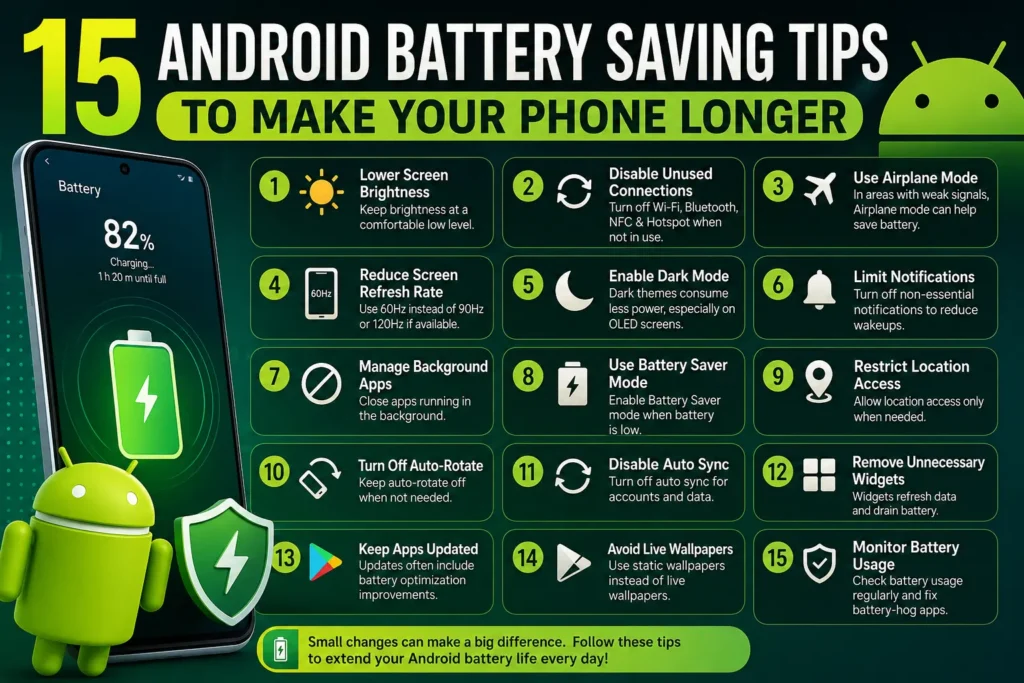
If your Android phone battery does not last the day you do not always need to buy a new phone. Some easy changes can cut down how power you use and help your phone stay alive longer between charges.
In this guide I will share 15 Android battery saving tips that you can try right now.
Reduce Screen Brightness
screen brightness is one of the reason in Android phone battery dies so quickly.
If you will keep your phone brightness high for long time so you will drain your phone battery faster.
Try to turning the brightness down to a level that feels okay for your eyes. You can also on brightness if your phone has that feature.
You do not need to the screen at max brightness when you are indoors. A lower setting saves Android phone battery while still making the screen easy to read.
Use Dark Mode
A lot of Android phones have a Dark Mode option.
Dark Mode makes your apps and menus look dark of bright.
On phones with OLED or AMOLED screens dark pixels use power than bright ones. This is great for your Android phone battery.
Go into your display settings to find Dark Mode.
It might not change everything on every phone. It can definitely help save power sometimes.
Reduce Screen Timeout
If your screen stays on for few minutes after you stop it using your Android phone battery is being wasted.
Go to your display settings. Look for Screen timeout or Sleep.
Pick time like this 30 seconds or one minute.
This small change stops the screen from staying on when you forget to lock your phone.
Turn Off Always On Display When You Do Not Need It
The On Display can show you the time and your messages even when the screen is off.
It is handy. It does use extra Android phone battery.
If you care more about battery life than seeing the time on your lock screen you should turn off it.
Some phones let you set the Always On Display to only turn on at times.
Check Which Apps Use the Most Battery
Android has tool that shows you which apps are eating your battery.
Open:
Settings → Battery → Battery usage
The names of the menus might be a little different depending in your phone brand or your version of Android.
Look for apps that use an amount of Android phone battery.
If you never use an app but it uses lot of power try to stop it from running in the background or just delete it.
Turn Off Unnecessary Location Access
Location services can use up Android phone battery when apps keep asking where you are.
Check which apps have permission to see your location.
If an app does not need to know where you are all the time pick a limited setting.
For example a weather app does not need to know your location every single minute.
Cutting down on location use helps your Android phone battery longer.
Disable Bluetooth When You Are Not Using It
Bluetooth is the great for using headphones or other gadgets.
If you are not using Bluetooth just turn off it.
Modern Android devices are pretty good at managing Bluetooth so you might not see a change.
So it is a good habit to have when you want to save Android phone battery during a long day.
Use Battery Saver Mode
Most android phones come with battery saver feature.
Battery Saver works by slowing down the background tasks and limiting it uses some features to keep the phone running.
You can turn it on yourself when your battery gets low.
Some phones can even turn on Battery Saver automatically when the charge hits a percentages.
This is a lifesaver when you are away from a charger.
Reduce Unnecessary Notifications
Every time notifications pops up it wakes open your screen. Makes apps work in the background.
If you get many alerts look at which ones actually matter.
Go to your notification settings. Turn off alerts from apps that are not important.
This keeps you from getting distracted. Helps your Android phone battery.
Remove Apps You No Use
Apps you do not use might be still running in the background or checking for your updates.
Take a look at all the apps on your phone.
If you have not opened an app in months you should probably delete it.
Removing these apps saves space. Helps your Android phone battery too.
Avoid Extreme Temperatures
Heat and cold it can really mess with your android phone battery.
Try not to leave your phone in the sun or inside a car.
Much heat is very bad for lithium ion batteries.
If your phone feels hot while you charging it or playing game let it cool down for a bit.
Use Wi Fi When Available
Using data can sometimes use more Android phone battery than using Wi Fi especially if your signal is weak.
If you are at home or somewhere with Wi Fi use that instead of your data.
A bad cellular signal makes your phone work much harder to stay connected which kills the battery.
If you are in spot with no signal and do not need the internet you can even turn on Airplane Mode for while.
Keep Android and Apps Updated
Software updates often include fixes that help your phone run better.
App updates can fix bugs that might be draining your Android phone battery.
Keep an eye out for Android system update. Update your apps in the app store.
A tip: do not download random “battery booster” apps from weird websites. Stick to the official updates.
Limit Background Activity for Power Hungry Apps
Some apps keep working even when you are not using them.
If you find app that is eating your Android phone battery check it settings.
This will depending on your version of Android you can tell the phone to stop that app from running in the background.
Just be careful with apps like WhatsApp or security apps because if you stop them you might not get messages away.
Carry a Power Bank for Long Days
Sometimes no amount of settings will be enough.
If you know you will be away from plug for time bring power bank.
Get a power bank that has enough juice for your phone and use a decent cable.
A power bank is a must have when you are traveling or spending day outside.
How to Find What Is Draining Your Android Battery
If your Android phone battery suddenly dies faster than it used do not panic and thinking your battery is broken.
First check your battery usage in the settings.
See if a specific app has recently started using a ton of power.
Also feel if your phone is getting too hot or if it is struggling to find a signal.
These things will usually tell you what the real problem .
Does Closing All Apps Save Battery?
A lot of people’s like to swipe all their open apps to “clean” their phone.
You really do not need to do this.
Android is built to manage apps and memory on its own.
Opening and closing apps over and over can actually use Android phone battery than just leaving them alone.
Only close apps if they are actually acting glitchy or using much power.
How Can You Make Your Battery Last All Day using 15 Android Battery Saving Tips
Start with the things that use the power.
Lower your screen brightness. Set a screen timeout. Turn on Battery Saver when you need. Limit location use. Check your battery-hungry apps.
You do not have to change every thing.
few small changes can make your Android phone battery last much longer.
Final thought
Make your Android battery life better does not have to be hard or expensive.
Simple habits like lowering brightness using Battery Saver and deleting apps go a long way.
The best thing you can do is check your battery usage
Once you see which apps are the culprits you can fix the problem without turning off everything on your phone.
Every Android phone is a little different so some settings might be, in places. Just use the tools your phone already gives you and see what works best for you.